How to Securely Erase an SSD (NVMe Secure Erase, Before Selling or Disposing)
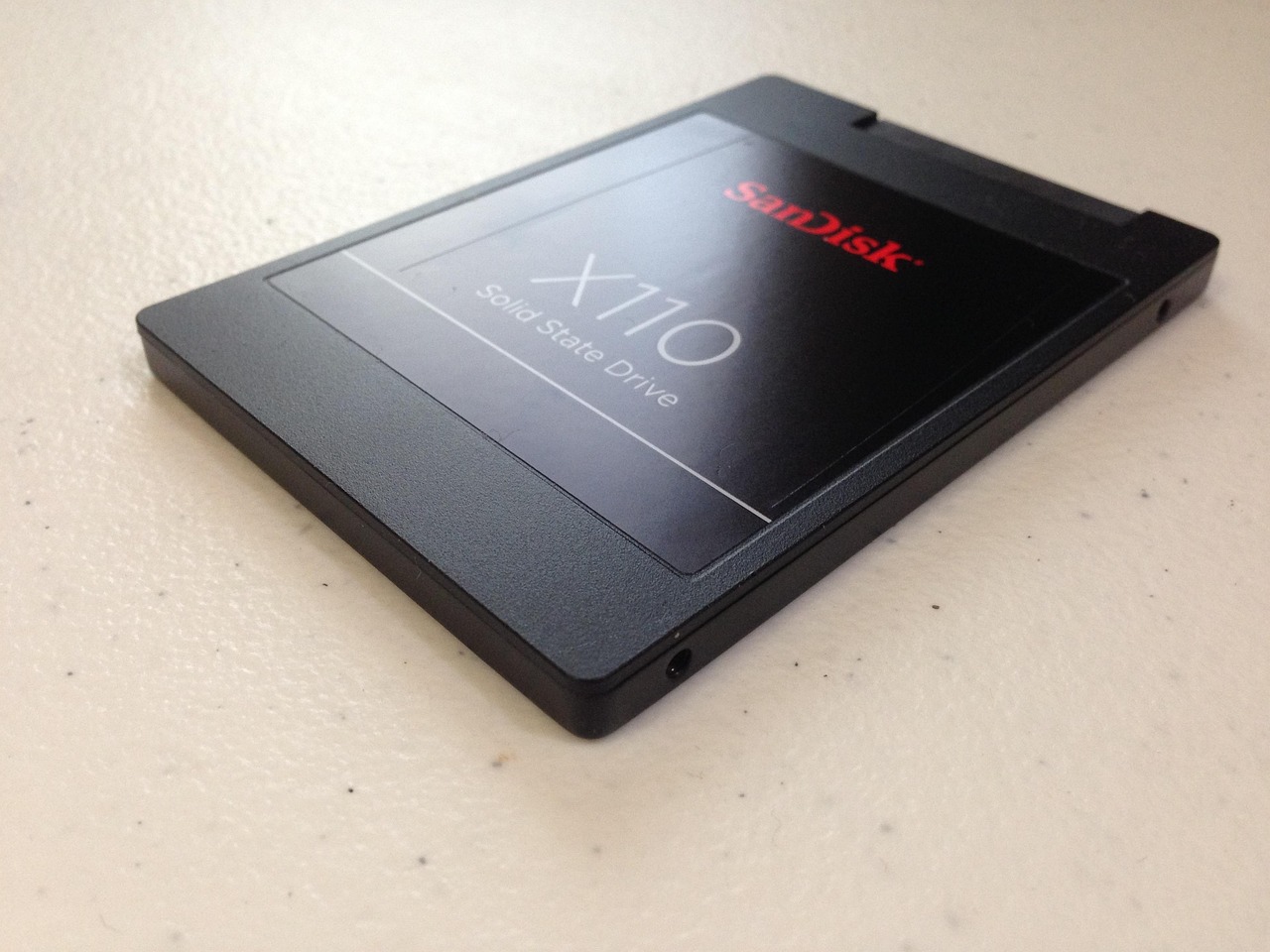
Quick answer: On a solid-state drive (SSD), do not reach for the tools you would use on a mechanical hard drive - shred, dd if=/dev/zero, Gutmann multi-pass, or DBAN. They are unreliable on SSDs and wear the drive for no security benefit. Instead use one of two methods: (1) the drive’s own firmware sanitize command - ATA Secure Erase for SATA SSDs, or NVMe Format / NVMe Sanitize for NVMe drives - or (2) crypto-erase: if the drive is encrypted, destroy the encryption key and every block becomes instantly unreadable. Either is appropriate before selling, donating, or disposing of a drive.
This guide explains why SSDs are different, walks through the firmware commands on Linux, and covers the crypto-erase shortcut that is often the simplest and most reliable option.
Why an SSD Is Not a Hard Drive
On a mechanical hard drive, a logical block address maps to a fixed physical location on a spinning platter. Overwrite that block and you have physically replaced the magnetic state where the data lived. This is why overwrite-based wiping (shred, dd, multi-pass tools) works on HDDs.
SSDs break that assumption in three ways:
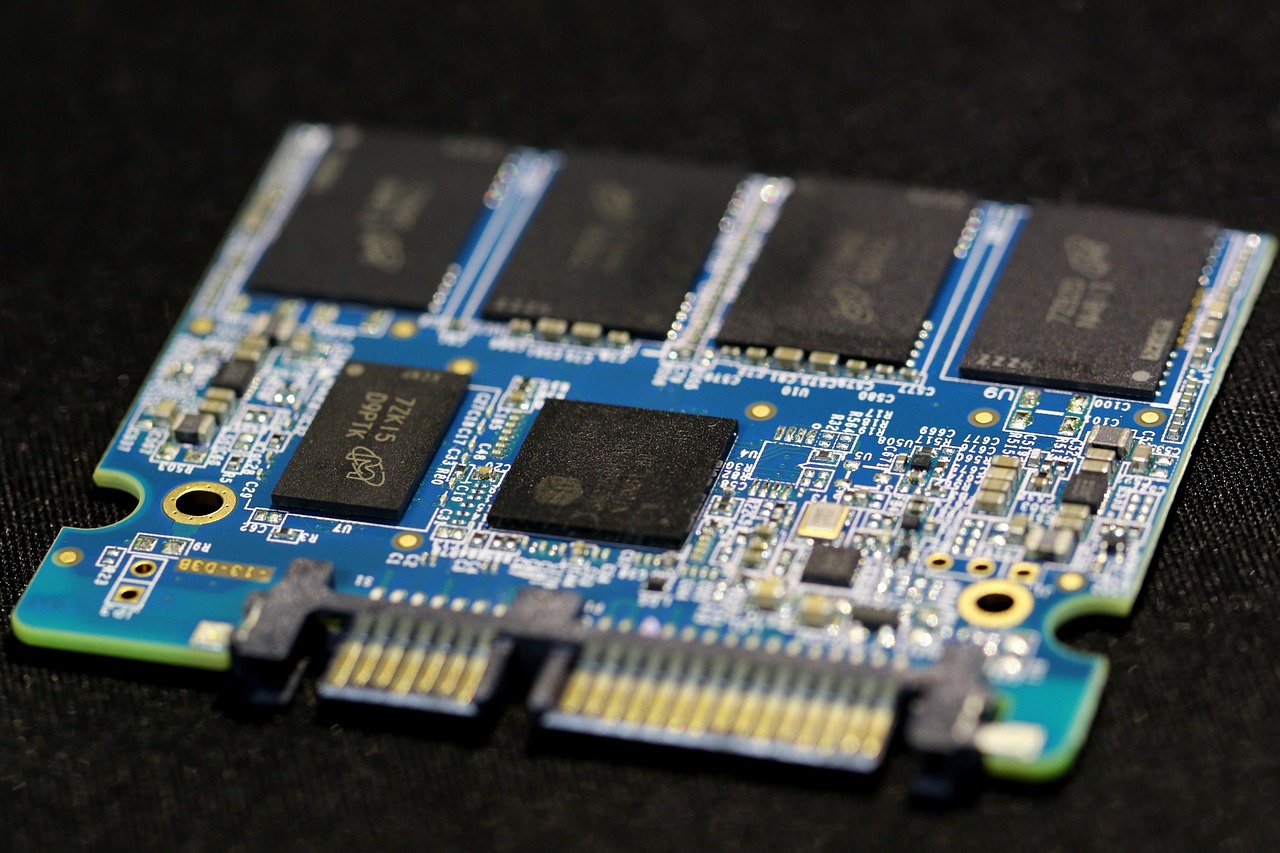
- Wear-leveling. NAND flash cells degrade with each write, so the SSD’s controller spreads writes across the chips to even out wear. When you “overwrite” a file, the controller usually writes the new data to a different, fresh physical block and remaps the logical address - leaving the original data sitting in a now-orphaned cell that you cannot address from the OS.
- Over-provisioning. Every SSD reserves extra physical capacity (often 7-28%) that is never exposed to the operating system. Data can be retained in this reserve space, completely out of reach of any overwrite you issue.
- TRIM and the flash translation layer. The controller maintains its own mapping table between logical and physical addresses. You have no direct command path to a specific cell; you only ask the controller, and it decides.
The consequence: a software overwrite pass cannot guarantee it touched every physical cell that ever held your data. Multi-pass methods like Gutmann were designed for the magnetic encoding of 1990s hard drives and provide no additional benefit on flash - they simply multiply the write wear. The correct approach hands the job to the only component that can reach every cell: the SSD’s own controller.
What encryption at rest does not answer
Encryption protects data on a device that is off, or on media you no longer hold. It protects nothing while the machine is running and unlocked, which is most of the time, and nothing at all about the accounts reachable from that unlocked session.
Situate your own attack surface, 10 questions, about three minutes, no account, no email, nothing stored. It tells you whether your weak point is the disk, the running session, or the mailbox that can reset everything else.
Method 1 - Firmware Sanitize (ATA Secure Erase / NVMe Sanitize)
Every modern SSD controller implements a built-in command that resets the cells the controller knows about - including the over-provisioned reserve. This is the authoritative way to erase the physical media.
A loud warning before any command below: these operations erase the entire drive irreversibly, including partitions, the OS, and any data you forgot was there. Identify the correct device first (lsblk, sudo nvme list), unmount it, and never run these against your running system disk. Back up anything you need first.
NVMe SSDs on Linux (nvme-cli)
The nvme-cli package provides the standardized sanitize and format commands for NVMe drives. Replace /dev/nvmeXn1 with the real namespace of the drive you intend to erase - and verify it twice.
# List NVMe devices so you pick the right one
sudo nvme list

# Cryptographic erase: rotates the internal media-encryption key,
# making all existing data undecryptable instantly (if supported)
sudo nvme format /dev/nvmeXn1 --ses=2

# Or a block (user-data) erase instead of crypto erase
sudo nvme format /dev/nvmeXn1 --ses=1

# The dedicated sanitize command (block erase); check support first
sudo nvme sanitize /dev/nvmeXn1 --sanact=2
--ses=2 requests a cryptographic erase: many NVMe SSDs transparently encrypt all data with an internal key, and rotating that key renders the old contents unrecoverable in seconds. --ses=1 requests a user-data erase. Support for each mode varies by drive; sudo nvme id-ctrl /dev/nvmeXn1 reports the sanitize and format capabilities the controller advertises.
SATA SSDs on Linux (hdparm)
For SATA SSDs, the ATA Secure Erase command is issued through hdparm. The drive must not be frozen (a power-cycle or suspend/resume often clears a frozen state). The sequence sets a temporary user password, then issues the erase, which clears the password as part of the operation.
# Confirm the drive is "not frozen" and supports the command
sudo hdparm -I /dev/sdX | grep -i -A2 security

# Set a temporary password (required by the ATA spec to arm the erase)
sudo hdparm --user-master u --security-set-pass p /dev/sdX

# Issue the secure erase (or --security-erase-enhanced if listed as supported)
sudo hdparm --user-master u --security-erase p /dev/sdX
Again, /dev/sdX is a placeholder - substitute the verified device node. blkdiscard /dev/sdX is a lighter alternative that issues a TRIM/discard across the whole device; it is faster but, unlike sanitize, does not guarantee the reserve area is wiped, so prefer the firmware sanitize for disposal.
Vendor tools
Most SSD makers ship desktop utilities that wrap these same firmware commands behind a button, which is the easiest route for Windows users: Samsung Magician (Secure Erase), Crucial Storage Executive, WD Dashboard / SanDisk Dashboard, and similar. They issue the standard ATA/NVMe sanitize commands under the hood.
Method 2 - Crypto-Erase (Destroy the Key)
The simplest and most robust method does not erase cells at all - it makes the data permanently undecryptable by destroying the key.
If the whole drive is already encrypted - with LUKS on Linux, BitLocker on Windows, or FileVault on macOS - then every block on the disk is ciphertext. The plaintext only exists when the key is loaded. Erase or overwrite the key material and the entire volume becomes a field of random-looking bytes that no one can decrypt, instantly and regardless of wear-leveling or over-provisioning.
On a LUKS volume this means destroying the header that holds the key slots:
# Irreversibly wipe a specific LUKS key slot, or the whole header
sudo cryptsetup luksErase /dev/sdX
Once the LUKS header is gone, the volume key it protected can never be recovered, so the data is unrecoverable even though the ciphertext physically remains in the cells. This is why encrypting a drive from day one is the best disposal strategy: when the time comes, you do not have to trust the firmware sanitize at all - you just throw away the key. See our guides on full disk encryption and what encryption actually is for setting this up correctly.
For drives that were never encrypted, crypto-erase is unavailable after the fact, so fall back to the firmware sanitize in Method 1.
Before You Sell, Donate, or Dispose
| Method | When to use it | Reliability on SSD |
|---|---|---|
| ATA Secure Erase / NVMe Sanitize | Any SSD you control directly; before resale | High - controller resets all cells incl. reserve |
| Crypto-erase (destroy key) | Drive was already encrypted (LUKS/BitLocker/FileVault) | High - instant, independent of wear-leveling |
blkdiscard (TRIM) | Quick wipe when sanitize is unavailable | Medium - reserve area not guaranteed |
| Encrypt then factory reset | Phones, laptops with built-in reset | High if encryption was on before reset |
shred / dd / Gutmann multi-pass | Mechanical HDDs only | Low on SSD - does not reach remapped cells |
| Quick format / delete / empty trash | Never, for secure disposal | None - only removes the file table entry |
Selling or giving the drive away: run a firmware Secure Erase (or vendor tool), or if it was encrypted, crypto-erase by destroying the key, then optionally do a single firmware sanitize for peace of mind. Physically destroying a dead drive that no longer powers on (so no command can reach it): mechanical destruction of the NAND chips is the fallback when sanitize is impossible.
What Does Not Work
- Quick format rewrites the filesystem’s table of contents, not the data; the underlying blocks are untouched.
- Deleting files / emptying the trash removes pointers only.
- A single zero-fill pass on an SSD misses remapped and over-provisioned cells and is not authoritative.
shred,dd, Gutmann, DBAN were built for magnetic platters and give no guarantee on flash while adding write wear.
Frequently asked questions
Does shred work on an SSD?
Not reliably. shred overwrites the logical blocks you point it at, but an SSD’s controller uses wear-leveling and over-provisioning, so your overwrite often lands on fresh cells while the original data survives in remapped or reserved cells you cannot address. Use the drive’s firmware Secure Erase / Sanitize instead, or crypto-erase if the drive is encrypted.
Is ATA Secure Erase safe for the drive?
Yes. ATA Secure Erase and NVMe Sanitize are standard commands the controller is designed to execute; they reset the cells rather than hammering them with passes, so they cause far less wear than a multi-pass overwrite. The real risk is human: the command erases the whole drive irreversibly, so verify the device node and back up anything you need first.
How do I securely erase an NVMe SSD on Linux?
Install nvme-cli, run sudo nvme list to identify the correct namespace, then issue sudo nvme format /dev/nvmeXn1 --ses=2 for a cryptographic erase (or --ses=1 for a user-data erase). Some drives also support sudo nvme sanitize. Check sudo nvme id-ctrl to confirm which modes your drive advertises, and double-check the device path - the operation cannot be undone.
Is encrypting and then destroying the key enough?
Yes, when the entire drive was encrypted from the start. If every block is ciphertext (LUKS, BitLocker, FileVault), destroying the key material - for example wiping the LUKS header with cryptsetup luksErase - makes all data undecryptable instantly, independent of wear-leveling or over-provisioning. It does not help for data written before encryption was enabled, which is why encrypting a drive on day one is the cleanest disposal plan.