How to Encrypt a Folder: The Method Depends on What You Are Hiding It From

There are three different things people mean by this, and they protect against three different threats. Picking the wrong one is how folders end up feeling protected while being readable.
Before choosing a method, answer one question: who are you keeping it from? A curious family member, a thief who takes the laptop, or the company hosting your cloud storage. Those are not the same problem and they do not have the same answer.
If the threat is someone using your computer
Full disk encryption is the correct answer, and it is probably already available. BitLocker on Windows, FileVault on macOS, LUKS on Linux. It encrypts everything, including the temporary files and swap that a folder-level tool leaves behind.
A folder tool protects the folder. Disk encryption protects the copies you did not know existed. Word autosaves, thumbnail caches, search indexes and swap files routinely hold fragments of documents outside the folder they came from.
If the laptop is lost or stolen, this is the only measure that matters. Our page on full disk encryption covers what it does and does not cover once the machine is unlocked and running.
If the threat is another user on the same machine
Here a folder-level container makes sense, because disk encryption is already unlocked while you are logged in and does nothing against someone sitting at your session.
Create an encrypted container, a single file that mounts as a drive when you supply the passphrase and is an unreadable blob otherwise. It is the cleanest answer on every operating system, it does not depend on your file system, and it moves as one file. The VeraCrypt guide covers the setup end to end.
⚠️ Avoid the compressed archive with a password as a general solution. It is convenient and it works, but older archive formats leak file names and sizes even when the contents are encrypted, and people routinely leave the unencrypted originals sitting next to the archive.
And a warning about the checkbox in Windows folder properties. The built in Encrypting File System ties the folder to your Windows account, which sounds ideal until you reinstall, change account, or copy the folder to another disk. Without the exported certificate the files are gone, and people discover this at the worst possible moment. If you use it, export the key first and store it somewhere that is not the encrypted folder.
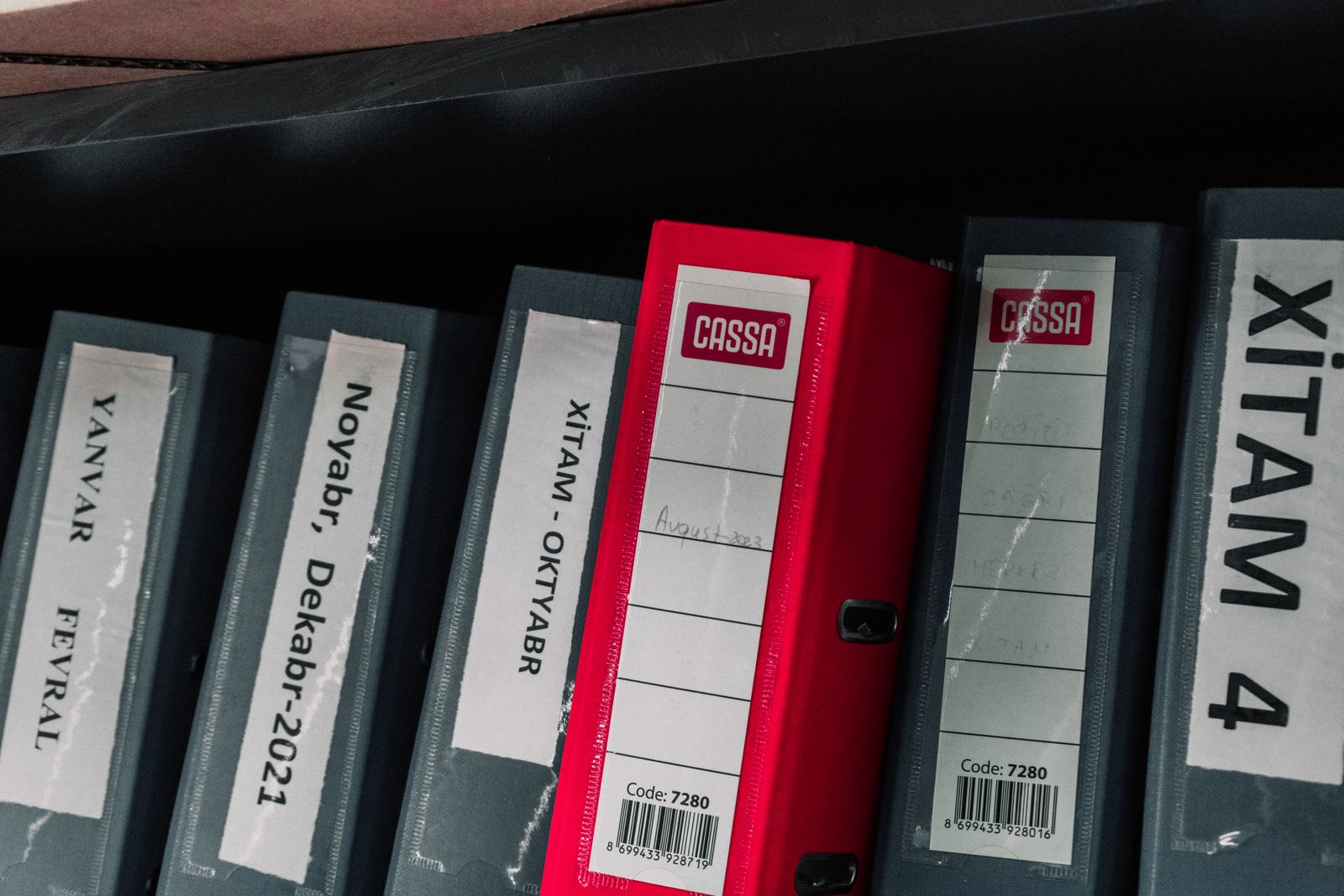
Binders on a shelf, contents invisible, labels perfectly legible. That is exactly what most folder encryption leaves behind: you cannot read the documents, but the names, the dates and the sizes are right there on the spine, and they often say enough.
If the threat is the cloud provider
This is the case where people are most often wrong, because the folder looks protected in the sync client while the provider holds a readable copy.
Encrypt before the file leaves your machine. If you place an already encrypted container inside the synced folder, the provider stores an opaque blob. If you use the provider’s own protection feature, you are trusting them, which may be reasonable but is a different decision.
And expect a practical cost. A container syncs as one large file, so changing one document re-uploads the whole thing. For cloud use, many small encrypted files usually beat one big container, even though the container is neater locally.
What every method leaves visible
File names, sizes and timestamps, unless the tool explicitly hides them. A folder called
medical full of files dated last Tuesday tells a story before anything is decrypted.
The fact that encryption is in use. A large opaque file is not inconspicuous, and hiding that you are hiding something is a separate problem with separate tools.
Everything, while it is open. Mounted and unlocked, an encrypted container is an ordinary folder. Encryption protects data at rest, not data in front of an unlocked screen, which is why a lock screen and a short timeout are part of the same job.
The order that actually works
- Turn on full disk encryption. It is free, built in, and it covers the case that actually happens: a lost or stolen machine.
- Add a container for the handful of files that need protecting from someone with access to your session.
- For cloud folders, encrypt before syncing, and accept that the file names are still exposed unless the tool hides them.
- Delete the originals properly. Encrypting a copy while the plaintext stays in the recycle bin protects nothing at all.
The short version
- Decide who you are hiding it from first. The three answers are genuinely different.
- Disk encryption for a lost laptop, a container for a shared session, encrypt-before-sync for the cloud.
- A password on an archive is not a plan, mainly because the originals stay behind.
- Names, sizes and dates leak in almost every method.
- Unlocked is unprotected. Encryption ends where your open session begins.