How to Encrypt a USB Drive 2026 (Windows, macOS, Linux)
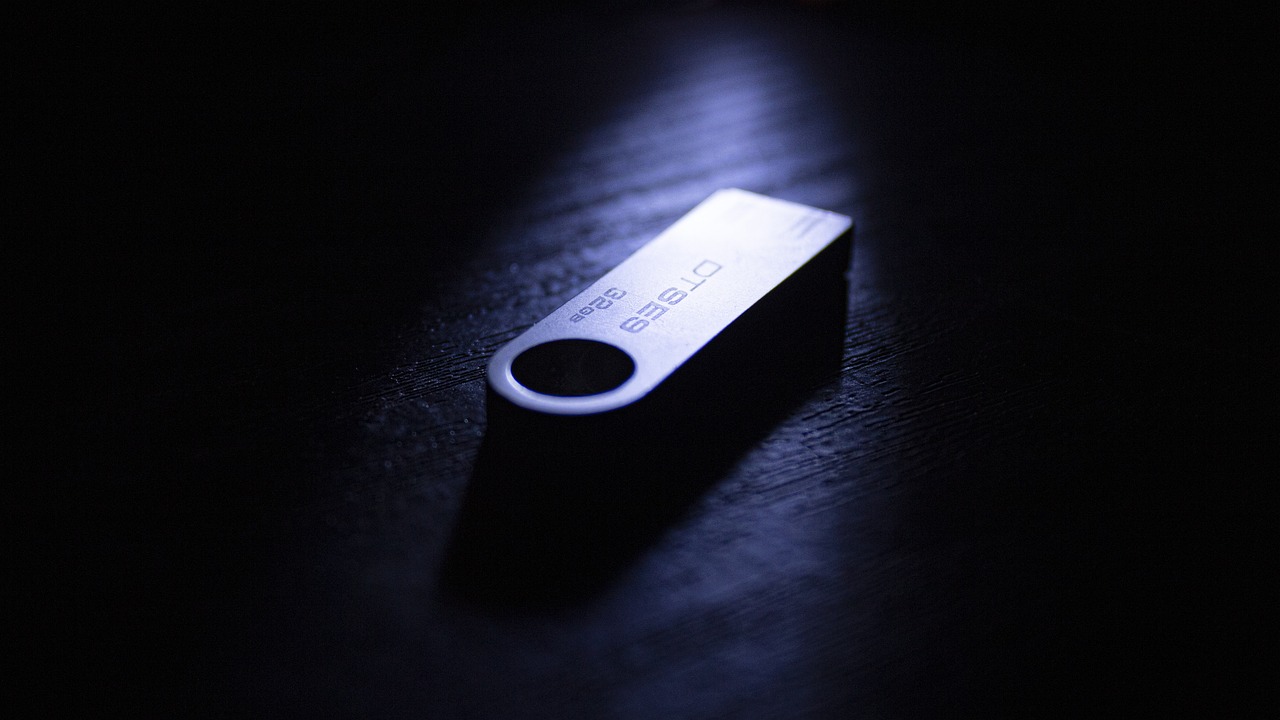
A USB drive is the easiest thing to lose - and if it’s not encrypted, whoever finds it reads everything on it. Encrypting it means the data is unreadable without your password, even if the drive is stolen. This guide shows the practical, free ways to do it on Windows, macOS and Linux, and is honest about what encryption does and doesn’t protect.
The fastest cross-platform way: VeraCrypt (free)
VeraCrypt is free, open-source, and works on Windows, macOS and Linux - the best choice if you move the drive between systems.
- Install VeraCrypt and open it.
- Create Volume → Encrypt a non-system partition/drive (or create an encrypted file container on the drive if you only need part of it encrypted).
- Select your USB drive, choose AES (the default is fine), and set a strong passphrase.
- Let it format/encrypt. To use the drive, open VeraCrypt, Select Device → Mount, enter the passphrase.
VeraCrypt uses strong, audited encryption and the same container works on every OS that has VeraCrypt installed.

What encryption at rest does not answer
Encryption protects data on a device that is off, or on media you no longer hold. It protects nothing while the machine is running and unlocked, which is most of the time, and nothing at all about the accounts reachable from that unlocked session.
Situate your own attack surface, 10 questions, about three minutes, no account, no email, nothing stored. It tells you whether your weak point is the disk, the running session, or the mailbox that can reset everything else.
Built-in options (no extra software)
Windows - BitLocker To Go (Pro/Enterprise editions): right-click the USB drive → Turn on BitLocker → set a password → save your recovery key somewhere safe. The drive unlocks with the password on any Windows PC.
macOS - Encrypted volume: if the drive is formatted APFS or Mac OS Extended, right-click it in Finder → Encrypt “Drive” → set a password. Or use Disk Utility to erase it as APFS (Encrypted). Note: macOS encryption isn’t readable on Windows.
Linux - LUKS: the standard. In GNOME Disks, select the drive → format the partition → tick Password protect volume (LUKS). Or on the command line with cryptsetup luksFormat. LUKS volumes aren’t natively readable on Windows/macOS.
Which method should you choose?
- You move the drive between Windows, macOS and Linux → VeraCrypt (the only one that’s truly cross-platform).
- Windows only, Pro edition → BitLocker To Go (zero install).
- macOS only → Finder/Disk Utility encryption.
- Linux only → LUKS.
The honest limits
- Encryption protects data at rest, not a weak password. A short password can be brute-forced - use a long passphrase.
- Lose the password (and recovery key) and the data is gone - by design. Store the recovery key separately and safely.
- An unlocked, mounted drive is readable - encryption only helps when the drive is locked/unplugged.
- Cross-OS readability differs: BitLocker, macOS and LUKS volumes aren’t universally readable; VeraCrypt is the portable choice.
- A USB drive is one copy. Pair encryption with an encrypted backup so a lost drive isn’t a lost file.
The bottom line
To encrypt a USB drive in 2026: use VeraCrypt (free, open-source) if you need it to work across Windows, macOS and Linux; otherwise use the built-in tool for your OS - BitLocker To Go, macOS encrypted volumes, or LUKS. Set a long passphrase, save the recovery key safely, and back the drive up encrypted - a lost USB then leaks nothing.
Frequently asked questions
What is the easiest way to encrypt a USB drive? On Windows Pro, BitLocker To Go (right-click → Turn on BitLocker) is the fastest with no install. For a cross-platform drive, VeraCrypt is the easiest free option that works everywhere.
Is VeraCrypt safe and free? Yes - VeraCrypt is free, open-source, and uses strong, independently reviewed encryption. It’s the successor to TrueCrypt and runs on Windows, macOS and Linux.
Can I encrypt a USB drive without software? Yes, using your OS’s built-in tools: BitLocker To Go (Windows Pro), Finder/Disk Utility encryption (macOS), or LUKS via GNOME Disks (Linux). They aren’t cross-OS readable, though.
What happens if I forget the password? The data is unrecoverable by design - that’s the point of encryption. Always save the recovery key (BitLocker) or keep your passphrase in a password manager.
Editorial guide based on the documented features of VeraCrypt, BitLocker To Go, macOS encryption and LUKS as of 2026. Commercial links carry the rel=“sponsored nofollow” attribute; an affiliate commission may apply at no extra cost to you.
Related reading: How to Encrypt Your Email 2026